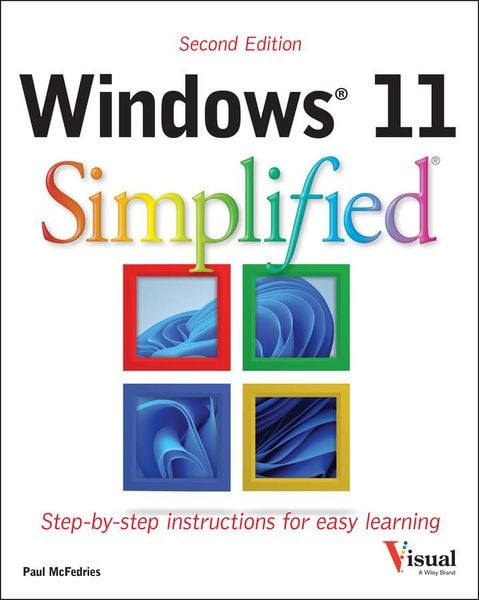
Produktbild: Windows 11 Simplified

Windows 11 Simplified

24,99 €

inkl. gesetzl. MwSt., zzgl. Versandkosten


  • Kostenlose Lieferung ab 30 € Einkaufswert
  • Versandkostenfrei für Bonuscard-Kund*innen

Produktdetails

Einband

Taschenbuch

Erscheinungsdatum

17.02.2025

Verlag

Wiley

Seitenzahl

256

Maße (L/B/H)

20,2/25,5/1,6 cm

Gewicht

616 g

Auflage

2. Auflage

Sprache

Englisch

ISBN

978-1-394-27987-6

Produktdetails

Einband

Taschenbuch

Erscheinungsdatum

17.02.2025

Verlag

Wiley

Seitenzahl

256

Maße (L/B/H)

20,2/25,5/1,6 cm

Gewicht

616 g

Auflage

2. Auflage

Sprache

Englisch

ISBN

978-1-394-27987-6

Herstelleradresse

Libri GmbH
Europaallee 1
36244 Bad Hersfeld
DE

Email: gpsr@libri.de

Noch keine Bewertungen vorhanden

Verfassen Sie die erste Bewertung zu diesem Artikel

Helfen Sie anderen Kundinnen und Kunden durch Ihre Meinung.

Kundinnen und Kunden meinen

Bewertungen (0)

Die Leseprobe wird geladen.
  • Produktbild: Windows 11 Simplified
  • Chapter 1 Getting Started with Windows

    Explore the PC Screen 4

    Explore the Start Menu 5

    Start and Close an App 6

    Connect to Your Wireless Network 8

    Put Windows to Sleep 10

    Restart or Shut Down Windows 11

    Install an App 12

    Switch Between Running Apps 14

    Arrange Running Apps 16

    Uninstall an App 18

    Chapter 2 Customizing Windows

    Pin an App to the Start Menu 22

    Open the Settings App 24

    Change the Lock Screen Background 26

    Choose a Lock Screen Status App 28

    Customize Syncing Between Devices 30

    Access an App's Features 32

    Pin an App to the Taskbar 34

    Change the Theme 36

    Adjust the Volume 38

    Set the Time Zone 39

    Configure Windows to Work with Multiple Monitors 40

    Customize the Taskbar 42

    Chapter 3 Surfing the Web

    Open a Web Page 46

    Open a Web Page in a Tab 48

    Navigate Web Pages 50

    Find Text on a Page 51

    Navigate with the History List 52

    Change Your Startup Page 54

    Save Favorite Web Pages 56

    Take Advantage of the Favorites Bar 58

    Share a Web Page 60

    Search for Sites 62

    Download a File 64

    Chapter 4 Sending and Receiving Email

    Launch the Outlook App 68

    Add Your Microsoft Account 69

    Configure More Email Accounts 70

    Send an Email Message 72

    Format the Message Text 74

    Add a File Attachment 76

    Save a Draft of a Message 78

    Receive and Read Email Messages 80

    Reply to a Message 82

    Forward a Message 84

    Open and Save an Attachment 86

    Delete a Message 88

    Create a Folder for Saving Messages 90

    Chapter 5 Performing Day-to-Day Tasks with Apps

    Create a Contact 94

    Import Contacts 96

    View Your Calendar 98

    Add an Event to Your Calendar 100

    Create a Recurring Event 102

    Add an Event Reminder 103

    Search Your PC 104

    Write a Note 106

    Make a To-Do List 108

    Display a Location on a Map 110

    Get Directions to a Location 112

    Check Your Weather Forecast 114

    Check Another City's Weather Forecast 116

    Chapter 6 Working with Images

    Import Images from a Digital Camera 120

    Navigate the Pictures Folder 122

    View Your Images 124

    Start a Slide Show 126

    Mark a Photo as a Favorite 127

    Repair an Image 128

    Add a Photo Effect 130

    Crop an Image 132

    Rotate an Image 134

    Delete an Image 135

    Take a Picture with Your PC Camera 136

    Chapter 7 Working with Multimedia

    Import Videos from a Digital Camera 140

    Navigate the Videos Folder 142

    Watch a Video 144

    Trim a Video 146

    Buy or Rent a Movie or TV Show 148

    Navigate the Music Folder 150

    Play Music 152

    Create a Playlist 154

    Chapter 8 Editing Documents

    Create and Save a Document 158

    Open a Document 160

    Edit Document Text 162

    Find Text 166

    Replace Text 168

    Insert Special Symbols 170

    Chapter 9 Working with Files

    Select a File 174

    Change the File View 176

    Preview a File 177

    Copy a File 178

    Move a File 179

    Rename a File 180

    Create a New File 181

    Delete a File 182

    Restore a Deleted File 183

    Chapter 10 Implementing Security

    Understanding Windows Security 186

    Check for Security Problems 188

    Scan Your PC for Threats 190

    Display the Sign-In Options 191

    Sign In with a PIN 192

    Set Up a Fingerprint Sign-In 194

    Sign In with Facial Recognition 196

    Lock Your Computer 198

    Configure Your PC to Lock Automatically 200

    Browse the Web Privately 202

    Chapter 11 Making Windows More Accessible

    Increase the Text Size 206

    Magnify Screen Areas 208

    Have Screen Text Read to You 210

    Change to a High-Contrast Theme 212

    Apply a Color Filter 214

    Flash the Screen During Audio Notifications 216

    Make the Keyboard More Accessible 218

    Control Windows Via Voice 220

    Chapter 12 Putting AI to Work with Copilot

    Understanding Microsoft Copilot 224

    Chat with Copilot 226

    Generate Text from a Prompt 228

    Rewrite Existing Text 230

    Generate an Image from a Prompt 232

    Add an Image to a Chat Session 234

    Voice Chat with Copilot 236

    Index 238