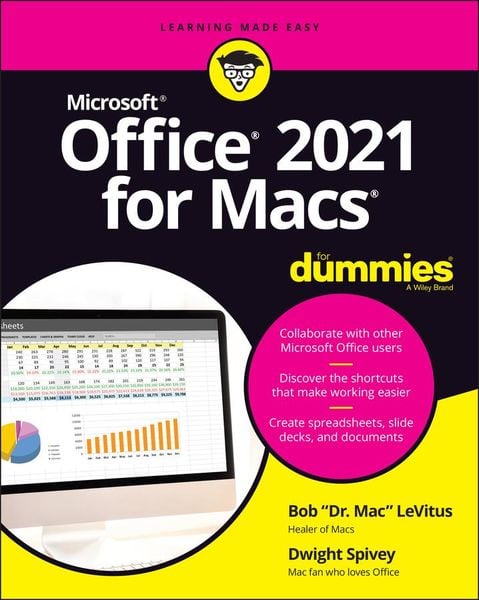
Produktbild: Office 2021 for Macs for Dummies

Office 2021 for Macs for Dummies

27,99 €

inkl. gesetzl. MwSt., zzgl. Versandkosten


  • Kostenlose Lieferung ab 30 € Einkaufswert
  • Versandkostenfrei für Bonuscard-Kund*innen

Beschreibung

Produktdetails

Einband

Taschenbuch

Erscheinungsdatum

10.05.2022

Verlag

John Wiley & Sons Inc

Seitenzahl

432

Maße (L/B/H)

23/18,8/2,7 cm

Gewicht

596 g

Auflage

1. Auflage

Sprache

Englisch

ISBN

978-1-119-84044-2

Beschreibung

Produktdetails

Einband

Taschenbuch

Erscheinungsdatum

10.05.2022

Verlag

John Wiley & Sons Inc

Seitenzahl

432

Maße (L/B/H)

23/18,8/2,7 cm

Gewicht

596 g

Auflage

1. Auflage

Sprache

Englisch

ISBN

978-1-119-84044-2

Herstelleradresse

Libri GmbH
Europaallee 1
36244 Bad Hersfeld
DE

Email: gpsr@libri.de

Kundinnen und Kunden meinen

0 Bewertungen

Informationen zu Bewertungen

Zur Abgabe einer Bewertung ist eine Anmeldung im Konto notwendig. Die Authentizität der Bewertungen wird von uns nicht überprüft. Wir behalten uns vor, Bewertungstexte, die unseren Richtlinien widersprechen, entsprechend zu kürzen oder zu löschen.

Die Bewertungen sind nach Format, Anzahl Sterne und Datum sortiert.

Verfassen Sie die erste Bewertung zu diesem Artikel

Helfen Sie anderen Kund*innen durch Ihre Meinung

Kundinnen und Kunden meinen

0 Bewertungen filtern

Die Leseprobe wird geladen.
  • Produktbild: Office 2021 for Macs for Dummies
  • Introduction 1

    About This Book 1

    Foolish Assumptions 2

    Icons Used in This Book 2

    Beyond the Book 3

    Where to Go from Here 3

    Part 1: Introduction to Microsoft Office for Mac 5

    Chapter 1: Overview from 10000 Feet 7

    The Many Faces of Office for Mac 7

    Installing Office 9

    Getting a Microsoft account 9

    Downloading and installing Office 9

    Keeping Your Apps Up-to-Date 11

    Chapter 2: A Sweet Suite: Introducing the Office Apps 13

    What's New and Good 15

    The suite life 15

    Word 18

    PowerPoint 18

    Excel 19

    Outlook 19

    What's New but Bad 20

    Together They're Better 21

    Chapter 3: Common Features in All Office Apps 23

    Using Menus in Office Apps 23

    Toolbars Ribbons and Panes: Think "Visual" Menus 25

    The Quick Access toolbar 26

    Reveling in the ribbon 26

    Panes are anything but a pain 28

    Customizing the Quick Access Toolbar Ribbon Tabs and Keyboard Shortcuts 29

    Customize the Quick Access toolbar 29

    Customize ribbon tabs and menus 30

    Creating ribbon tabs and tab groups 32

    Customizing keyboard shortcuts 32

    Creating and Saving Documents 34

    Using the gallery to open templates or recent documents 34

    Saving a document 36

    Saving and Using Documents in the Cloud 39

    Saving a file on a OneDrive or SharePoint location 40

    Sharing a file you've saved using OneDrive or SharePoint 41

    Opening a file you've saved on your OneDrive or SharePoint location 41

    Understanding App Preferences 42

    App preferences: Why? 42

    App preferences: How? 42

    Help: It's more than just a Beatles movie 44

    Official Microsoft websites 46

    Part 2: Mastering Microsoft Word 47

    Chapter 4: Getting to Know Microsoft Word 49

    Using a Variety of Versatile Views 50

    Print layout view 51

    Web layout view 51

    Outline view 53

    Draft view 54

    Focus view 54

    Full screen view 56

    Immersive reader view 57

    Zoom, zoom, zoom 58

    Getting around in Your Document 59

    A scroll new world: Navigating by using the mouse or trackpad 59

    Navigating by using keyboard navigation 61

    Chapter 5: Creating Documents 65

    Adding Text and Graphics to Your Document 65

    Entering text in your document 66

    Inserting an image in your document 66

    Selecting Text for Editing and Formatting 71

    Formatting Text Paragraphs and Images 74

    Changing the look of the font 74

    Changing the look of paragraphs 76

    Changing the look of images 79

    Copying Words and Images from Other Sources 83

    Dragging and dropping 83

    Copying and pasting 84

    Working with Other Document Elements 85

    Adding elements by using the ribbon 86

    Modifying elements by using the ribbon 87

    Removing elements 87

    Chapter 6: Refining and Editing Documents with Word 89

    Moving Text and Images in Your Documents 90

    Moving items easily within a document 90

    Using special Word features that make moving stuff easier 91

    Check It Out: Checking Your Spelling Grammar and Hyphenation 93

    Double-checking your spelling and grammar 94

    Utilizing Word's built-in editor 95

    Correcting your errors automatically with AutoCorrect 98

    Hypnotic hyphenation 101

    Discovering the Reference Tools 102

    The thoroughly terrific thesaurus 102

    The online reference tools 104

    Saving Time with the Find and Replace Feature 108

    Finding and replacing text 108

    Using Find and Replace to make formatting changes 109

    Using advanced search options to do more 110

    Chapter 7: Using Templates and Other Design Elements 113

    Canned Design: Working with Word Templates 114

    Getting started with the Document Gallery 114

    Sample project: Starting a custom newsletter from a template 114

    Creating a customized version of a Word template 116

    Saving your customized template 116

    Adding Basic Design Elements to Your Document 118

    Imagine that: Adding and resizing an image 119

    Moving images around documents 119

    Creating headers and footers 121

    Adding lines to your header or footer 124

    Arranging text with some help from tabs 125

    Setting Tabs Margins and Other Types of Indents 126

    Setting tabs 126

    Making your margins 129

    Working with indents 130

    Columns and Lists and Text Boxes (Oh My) 132

    Column creation 132

    Lists made easy (and pretty) 134

    Text anywhere with text boxes 135

    Working with Tables 136

    Creating a table 136

    Formatting a table 139

    Chapter 8: This and That: Advanced and Collaboration Features 143

    Going in Style: Defining Styles for Easy Formatting 144

    The easy way: Defining a style by example 144

    The harder way: Defining a style by dialog 147

    Customizing Interface Elements 147

    Customizing ribbon tabs and menus 148

    Create ribbon tabs and tab groups 149

    Customizing the Quick Access toolbar 150

    Customizing keyboard shortcuts 152

    Creating a Table of Contents Automatically 154

    Using Collaboration Features 157

    Turning on the Track Changes feature 158

    Accepting or rejecting changes 160

    Addressing Envelopes and Creating Labels 162

    Creating and printing an envelope 162

    Creating labels 164

    Creating Web Pages 167

    Part 3: Powerful Presentations With Microsoft Powerpoint 169

    Chapter 9: Getting to Know Microsoft PowerPoint 171

    Viewing Slides with Various Views 172

    Normal view 173

    Slide sorter view 174

    Slide show view 174

    Notes page view 176

    Presenter view 176

    Reading view 177

    Planning Your Presentation: A Few Tips for Making Your Slide Shows Better 178

    Use the 10/20/30 rule 178

    Start with an outline 179

    Chapter 10: Creating Slide Shows 181

    Getting Started 182

    Giving Your Presentation a Visual Theme 182

    Using a theme as is 182

    Customizing a theme's colors or fonts 184

    Using Laborsaving Slide Layouts 186

    Mastering slide masters 186

    Working with title and text objects 191

    Working with PowerPoint Objects 193

    Formatting tables 194

    Creating a chart 196

    Get smart: Use SmartArt 199

    More media: Adding images movies or sounds 201

    Using Quick Styles and Effects 203

    Aligning arranging and distributing objects 206

    Chapter 11: Making Your Slide Shows Sing 213

    Using Transitions to Create a Polished-Looking Presentation 214

    Applying transitions 214

    Transition options 216

    Using Custom Animation 217

    Animating text or graphics 217

    Animating a chart or SmartArt graphic 223

    Creating Interactivity with Action Buttons 224

    Share and Share Alike 226

    Printing hard copy 226

    Exporting (saving) your presentations as files 229

    Chapter 12: Presentation Prowess 237

    Working with the Basic PowerPoint Tools 238

    Ribbon and Quick Access toolbar customization 238

    Proofing and reference tools 241

    Commenting on slides 242

    Templates and other miscellaneous tools 244

    Using Hyperlinks 244

    Recording Narration 246

    Making the Most of Your PowerPoint Presentation 247

    Rehearsing and setting slide timings 247

    Using the presenter tools 249

    Working with a single display 250

    Part 4: Crunching Data with Microsoft's Most Excellent Excel 253

    Chapter 13: Getting to Know Microsoft Excel 255

    Interfacing with Excel's User Interface 256

    Understanding the Concept of Rows Columns and Cells 257

    Using the Views 258

    Navigating within Your Worksheets 258

    Chapter 14: Crunching Numbers (and Data) with Excel 261

    Working with Templates 262

    Choosing a local template 262

    Working with online templates 263

    Entering Formatting and Editing Data in Cells 264

    Copying and Pasting Data (and Formatting) between Cells 266

    AutoFilling Cells 268

    Understanding Formulas and Functions 269

    Creating a formula 269

    Keeping track of Excel formulas with Formula Builder 270

    Using the Error Checking Feature 273

    Sorting and Filtering Data 275

    Sorting data 275

    Using filters to narrow your data searches 276

    Finding and Replacing Data 277

    Chapter 15: Enhancing and Printing Your Excel Spreadsheets 281

    Creating and Formatting Charts 282

    Including Pictures and Shapes 285

    Adding Formatting and Special Effects 288

    Creating and Sorting Custom Lists 291

    Creating a custom list 292

    Sorting a list 292

    Adding Headers and Footers 293

    Creating a header or footer 293

    Editing a header or footer 294

    Printing Your Spreadsheets 295

    Preparing for printing with Page Setup 296

    Ready set print 298

    Chapter 16: Advanced Spreadsheeting 299

    Customizing Excel 300

    Preferences 300

    Conditional Formatting 304

    Naming a Cell Range 307

    Working with Multiple Worksheets 307

    Hyperlinking 308

    Collaboration and Revision Tracking (aka Change Tracking) 310

    Saving a workbook online 310

    Tracking your changes 312

    Accepting and rejecting your changes 313

    Part 5: Microsoft Outlook: Miraculous Manager of Most Things 315

    Chapter 17: Getting to Know Outlook 317

    Taking a Quick Tour of Outlook 318

    The Mail module 318

    The Calendar module 319

    The People module 320

    The Notes and Tasks modules 320

    Chapter 18: Emailing with Outlook 323

    Setting Up Outlook for Email 323

    Setting up your email automatically 324

    Setting up your email account manually 327

    Sending Receiving and Managing Your Email 330

    Creating and sending messages 330

    Receiving messages 336

    Managing your email 340

    Chapter 19: Managing Your Affairs with Outlook 345

    Scheduling Events with Calendar 346

    Managing Your Crew with the People Module 353

    Adding and removing contacts 353

    Working with contacts 356

    Delving into the Home tab 360

    Tracking Progress with the Tasks Module 363

    Understanding Notes 365

    Chapter 20: Getting Advanced with Outlook 367

    Customizing: It's Not Just for Hot Rods Anymore 367

    Reducin' the ribbon 368

    Concentrating on columns 368

    Hiding showing and rearranging interface elements 369

    The fast way to start an advanced search 370

    What's Your Preference? 371

    Your personal preferences 371

    Roll over Beethoven and catch the email preferences 373

    Everything but the Kitchen Sync 375

    "New" Outlook? Yes Please! 376

    Part 6: the Part of Tens 379

    Chapter 21: Ten Unsung Office Features and Microsoft Apps for Mac 381

    The Developer Ribbon Tab 381

    A Multitude of Fonts 382

    Icons Gallery 383

    Import Outlook Archives 384

    Microsoft Teams 384

    Outlook Profile Manager 386

    Microsoft Remote Desktop 386

    Microsoft Edge 387

    Microsoft To Do 388

    Microsoft OneNote 388

    Chapter 22: Ten Timesaving Shortcuts and Tips for Enhanced Productivity 389

    Memorize Keyboard Shortcuts 389

    Get to Know Your Preferences 390

    Save a Document as a PDF File 391

    Save Time by Using the Share ¿ Email (as Attachment) Menu Item 392

    Focus on the Task at Hand 393

    Use the Open Recent Feature to Open Items from the Dock 393

    Get Help 393

    Use Format Painter 394

    Speak Your Mind with Dictation 394

    Don't Forget Your Free OneDrive 395

    Chapter 23: Ten Ways to Customize Office 397

    Modify the Quick Access Toolbar 397

    Modify Existing Ribbon Tabs and Tab Groups 398

    Create a New Ribbon Tab or Tab Group for Frequently Used Commands 399

    Focus with Full Screen 400

    Deal with Frequently Used Documents 401

    Remove Unused Keyboard Shortcuts 401

    Change an Existing Keyboard Shortcut 402

    Create a New Keyboard Shortcut 402

    Create Your Own Templates 403

    Experiment with Dark Mode 403

    Index 405