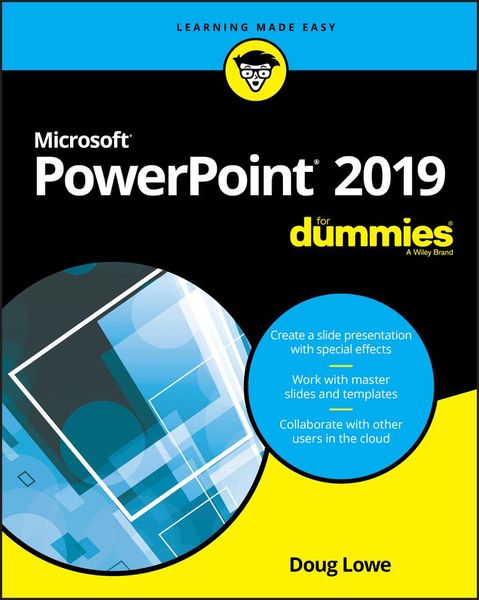
Produktbild: PowerPoint 2019 for Dummies

PowerPoint 2019 for Dummies

28,99 €

inkl. gesetzl. MwSt., zzgl. Versandkosten


  • Kostenlose Lieferung ab 30 € Einkaufswert
  • Versandkostenfrei für Bonuscard-Kund*innen

Beschreibung

Produktdetails

Einband

Taschenbuch

Erscheinungsdatum

16.10.2018

Verlag

John Wiley & Sons Inc

Seitenzahl

368

Maße (L/B/H)

23,3/18,9/2,2 cm

Gewicht

619 g

Auflage

1. Auflage

Sprache

Englisch

ISBN

978-1-119-51422-0

Beschreibung

Produktdetails

Einband

Taschenbuch

Erscheinungsdatum

16.10.2018

Verlag

John Wiley & Sons Inc

Seitenzahl

368

Maße (L/B/H)

23,3/18,9/2,2 cm

Gewicht

619 g

Auflage

1. Auflage

Sprache

Englisch

ISBN

978-1-119-51422-0

Herstelleradresse

Libri GmbH
Europaallee 1
36244 Bad Hersfeld
DE

Email: gpsr@libri.de

Kundinnen und Kunden meinen

0 Bewertungen

Informationen zu Bewertungen

Zur Abgabe einer Bewertung ist eine Anmeldung im Konto notwendig. Die Authentizität der Bewertungen wird von uns nicht überprüft. Wir behalten uns vor, Bewertungstexte, die unseren Richtlinien widersprechen, entsprechend zu kürzen oder zu löschen.

Die Bewertungen sind nach Format, Anzahl Sterne und Datum sortiert.

Verfassen Sie die erste Bewertung zu diesem Artikel

Helfen Sie anderen Kund*innen durch Ihre Meinung

Kundinnen und Kunden meinen

0 Bewertungen filtern

Die Leseprobe wird geladen.
  • Produktbild: PowerPoint 2019 for Dummies
  • Introduction 1

    About This Book 1

    Foolish Assumptions 2

    Icons Used in This Book 2

    Beyond the Book 3

    Where to Go from Here 3

    Part 1: Getting Started with Powerpoint 2019 5

    Chapter 1: Welcome to PowerPoint 2019 7

    What in Sam Hill Is PowerPoint? 8

    Introducing PowerPoint Presentations 9

    Presentation files 10

    What's in a slide? 11

    Starting PowerPoint 13

    Navigating the PowerPoint Interface 14

    Unraveling the Ribbon 17

    Telling PowerPoint What to Do 18

    The View from Here Is Great 18

    Taking the Backstage Tour 19

    Creating a New Presentation 20

    Editing text 20

    Adding a new slide 22

    Moving from slide to slide 23

    Choosing a design 24

    Displaying Your Presentation 25

    Saving Your Work 26

    Opening a Presentation 27

    Closing a Presentation 29

    Getting Help 29

    Exiting PowerPoint 31

    Chapter 2: Editing Slides 33

    Moving from Slide to Slide 34

    Working with Objects 34

    Selecting objects 35

    Resizing or moving an object 36

    Editing a Text Object 38

    Selecting Text 39

    Using Cut, Copy, and Paste 40

    Duplicating an Object 41

    Using the Clipboard Task Pane 41

    Oops! I Didn't Mean It (The Marvelous Undo Command) 42

    Deleting a Slide 43

    Duplicating a Slide 44

    Finding Text 44

    Replacing Text 46

    Rearranging Your Slides in Slide Sorter View 47

    Chapter 3: Working in Outline View 49

    Calling Up the Outline 49

    Selecting and Editing an Entire Slide 51

    Selecting and Editing One Paragraph 51

    Promoting and Demoting Paragraphs 51

    Adding a New Paragraph 52

    Adding a New Slide 53

    Moving Text Up and Down 54

    Collapsing and Expanding the Outline 54

    Chapter 4: Proofing Your Presentations 55

    Checking Spelling as You Go 55

    Spell Checking After-the-Fact 57

    Using the Thesaurus 59

    Capitalizing Correctly 60

    Using the AutoCorrect Feature 61

    Chapter 5: Don't Forget Your Notes! 65

    Understanding Notes 66

    Adding Notes to a Slide 67

    Adding an Extra Notes Page for a Slide 68

    Adding a New Slide from Notes Page View 69

    Printing Notes Pages 69

    Displaying Notes on a Separate Monitor 70

    Chapter 6: Show Time! 71

    The Quick Way to Print 72

    Printing from Backstage View 72

    Printing more than one copy 73

    Changing printers 73

    Printing part of a document 73

    Using Print Preview 74

    Setting Up a Slide Show 75

    Starting a Slide Show 76

    Working in Presenter View 77

    Keyboard and Mouse Tricks for Your Slide Show 79

    Using Presentation Tools 80

    Using the Laser Pointer feature 80

    Scribbling on your slides 81

    Rehearsing Your Slide Timings 82

    Using Custom Shows 83

    Creating a custom show 83

    Showing a custom show 84

    Hiding slides 85

    Showing Your Presentation Online 85

    Part 2: Creating Great-Looking Slides 89

    Chapter 7: All about Fonts and Text Formatting 91

    Changing the Look of Your Text 92

    Two ways to apply formatting 94

    Changing the size of characters 94

    Choosing text fonts 95

    Adding color to your text 95

    Adding shadows 96

    Big Picture Text Formatting 96

    Biting the bulleted list 97

    Creating numbered lists 99

    Setting tabs and indents 99

    Spacing out 101

    Lining things up 101

    Making columns 102

    Creating Fancy Text with WordArt 102

    Chapter 8: Designing Your Slides 107

    Looking at the Design Tab 107

    Working with Themes 108

    Applying themes 109

    Using theme colors 110

    Using theme fonts 113

    Applying theme effects 114

    Changing the Slide Size 115

    Applying Background Styles 116

    Using a gradient fill 116

    Using other background effects 118

    Using the Design Ideas Feature to Design Your Slides 119

    Chapter 9: Animating Your Slides 121

    Using Slide Transitions 121

    Using the Morph Transition 124

    Using the Animations Tab 126

    Using Advanced Animation 128

    Understanding advanced animation 128

    Using the Animation pane 130

    Adding an effect 131

    More about animating text 134

    Timing your animations 135

    Making Text Jiggle 138

    Using the Animation Painter 139

    Chapter 10: Masters of the Universe Meet the Templates of Doom 141

    Working with Masters 142

    Modifying the Slide Master 143

    Working with the Slide Master and Edit Master tabs 145

    Adding recurring text or other elements 146

    Applying themes to your Masters 146

    Adding new layouts 147

    Adjusting the Handout and Notes Masters 148

    Changing the Handout Master 148

    Changing the Notes Master 149

    Using Masters 150

    Overriding the Master text style 150

    Hiding background objects 151

    Using Headers and Footers 152

    Adding a date, number, or footer to slides 152

    Adding a header or footer to notes or handouts pages 154

    Editing the header and footer placeholders directly 154

    Yes, You Can Serve Two Masters 154

    Creating a new Slide Master 154

    Applying Masters 156

    Preserving your masters 156

    Restoring Lost Placeholders 157

    Working with Templates 158

    Creating a new template 159

    Creating a presentation based on a template 159

    Working with Presentation Sections 160

    Part 3: Embellishing Your Slides 163

    Chapter 11: Inserting Pictures 165

    Exploring the Many Types of Pictures 166

    Bitmap pictures 166

    Victor, give me a vector 167

    Using Pictures 168

    Dropping in a picture 168

    Moving, sizing, and stretching pictures 170

    Inserting Pictures from a File 171

    Cropping a Picture 172

    Adding Style to Your Pictures 173

    Applying a picture border 175

    Applying picture effects 175

    Correcting Sharpness, Brightness, and Contrast 175

    Adjusting Color 176

    Applying Artistic Effects 177

    Compressing Your Pictures 179

    Removing Picture Backgrounds 180

    Working with 3D Models 183

    Chapter 12: Drawing on Your Slides 187

    Some General Drawing Tips 187

    Zooming in 188

    Displaying the ruler, gridlines, and guides 188

    Sticking to the color scheme 188

    Saving frequently 189

    Remembering Ctrl+Z 189

    Drawing Simple Objects 190

    Drawing straight lines 191

    Drawing rectangles, squares, ovals, and circles 192

    Creating Other Shapes 192

    Drawing a shape 193

    Drawing a polygon or free-form shape 195

    Drawing a curved line or shape 196

    Creating a text box 197

    Styling Your Shapes 198

    Setting the shape fill 198

    Setting the shape outline 198

    Applying shape effects 199

    Flipping and Rotating Objects 200

    Flipping an object 200

    Rotating an object 90 degrees 200

    Using the rotate handle 201

    Drawing a Complicated Picture 201

    Changing layers 202

    Line 'em up 203

    Using the grids and guides 203

    Group therapy 204

    Chapter 13: Charting for Fun and Profit 207

    Understanding Charts 207

    Adding a Chart to Your Presentation 209

    Adding a new slide with a chart 209

    Adding a chart to an existing slide 212

    Pasting a chart from Excel 214

    Changing the Chart Type 214

    Working with Chart Data 215

    Switching rows and columns 216

    Changing the data selection 217

    Editing the source data 217

    Refreshing a chart 218

    Changing the Chart Layout 218

    Changing the Chart Style 219

    Embellishing Your Chart 220

    Using Treemap and Sunburst Charts 224

    Using Map Charts 226

    Chapter 14: Working with SmartArt 229

    Understanding SmartArt 229

    Creating a SmartArt Diagram 232

    Tweaking a SmartArt Diagram 234

    Editing the SmartArt Text 235

    Working with Organization Charts 237

    Adding boxes to a chart 238

    Deleting chart boxes 239

    Changing the chart layout 239

    Chapter 15: Lights! Camera! Action! (Adding Sound and Video) 241

    Getting Ready to Add Sound to a Slide 242

    Investigating sound files 242

    Inserting an audio sound object 243

    Setting Audio Options 245

    Controlling when a sound is played 245

    Looping a sound 246

    Hiding the sound icon 246

    Fading the sound in and out 246

    Trimming an audio clip 246

    Adding Video to Your Slides 247

    Setting Video Options 249

    Controlling when a video is played 249

    Looping a video 249

    Trimming a video clip 250

    Playing the video full screen 250

    Fading the video's sound in and out 250

    Adding a bookmark 250

    Compressing Media 252

    Chapter 16: More Things to Insert on Your Slides 253

    Inserting Tables 253

    Creating a table in a Content placeholder 254

    Inserting a table on a slide 255

    Drawing a table 256

    Applying style to a table 258

    Working with the Layout tab 260

    Inserting WordArt 263

    Using Hyperlinks 264

    Creating a hyperlink to another slide 266

    Creating a hyperlink to another presentation or to a website 267

    Adding Action Buttons 268

    Assigning button actions 268

    Choosing button shapes 269

    Creating a button 270

    Creating a navigation toolbar 271

    Inserting Equations 273

    Part 4: Working with Others 279

    Chapter 17: Collaborating in the Cloud 281

    Sharing a Presentation in the Cloud 281

    Sharing a Presentation with Other Users 283

    Sending Slides for Review Via Email 286

    Using Comments 288

    Comparing Presentations 290

    Chapter 18: Using a Slide Library and Other Ways to Reuse Slides 293

    Stealing Slides from Another Presentation 294

    Saving Slides in a Slide Library 295

    Stealing Slides from a Slide Library 297

    Chapter 19: Exporting Your Presentation to Other Formats 299

    Creating a PDF File 299

    Crafting a Video 300

    Adding timings and narration 301

    Creating a video 304

    Packaging Your Presentation on a CD 305

    Creating Word Handouts 308

    Part 5: The Part of Tens 311

    Chapter 20: Ten PowerPoint Commandments 313

    I Thou Shalt Frequently Savest Thy Work 313

    II Thou Shalt Storeth Each Presentation in Its Proper Folder 314

    III Thou Shalt Not Abuseth Thy Program's Formatting Features 314

    IV Thou Shalt Not Stealeth Copyrighted Materials 314

    V Thou Shalt Abideth by Thine Color Scheme, Auto-Layout, and Template 315

    VI Thou Shalt Not Abuse Thine Audience with an Endless Array of Cute Animations or Funny Sounds 315

    VII Keep Thy Computer Gurus Happy 315

    VIII Thou Shalt Backeth Up Thy Files Day by Day 315

    IX Thou Shalt Fear No Evil, for Ctrl+Z Is Always with Thee 316

    X Thou Shalt Not Panic 316

    Chapter 21: Ten Tips for Creating Readable Slides 317

    Try Reading the Slide from the Back of the Room 317

    Avoid Small Text 318

    No More Than Five Bullets, Please 318

    Avoid Excessive Verbiage Lending to Excessively Lengthy Text That Is Not Only Redundant But Also Repetitive and Reiterative 318

    Use Consistent Wording 318

    Avoid Unsightly Color Combinations 319

    Watch the Line Endings 319

    Keep the Background Simple 320

    Use Only Two Levels of Bullets 320

    Avoid Bullets Altogether If You Can 320

    Keep Charts and Diagrams Simple 321

    Chapter 22: Ten Ways to Keep Your Audience Awake 323

    Don't Forget Your Purpose 323

    Don't Become a Slave to Your Slides 324

    Don't Overwhelm Your Audience with Unnecessary Detail 324

    Don't Neglect Your Opening 324

    Be Relevant 325

    Don't Forget the Altar Call 325

    Practice, Practice, Practice 325

    Relax! 326

    Expect the Unexpected 326

    Don't Be Boring 326

    Index 327