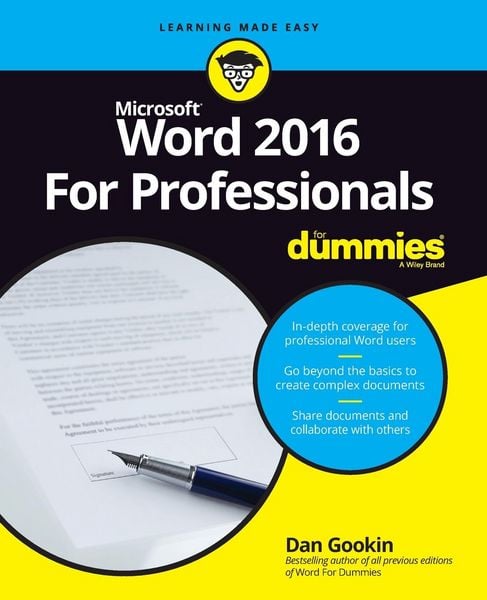
• Produktbild: Word 2016 For Professionals For Dummies
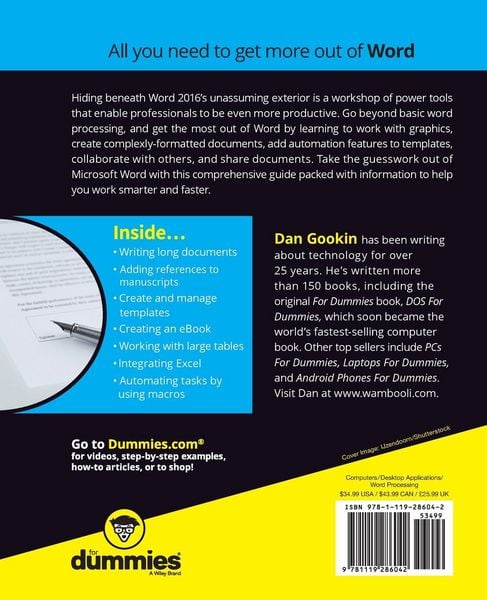
  • Produktbild: Word 2016 For Professionals For Dummies

Word 2016 For Professionals For Dummies

33,99 €

inkl. gesetzl. MwSt., Versandkostenfrei


Beschreibung

Produktdetails

Einband

Taschenbuch

Erscheinungsdatum

15.08.2016

Verlag

John Wiley & Sons Inc

Seitenzahl

656

Maße (L/B/H)

23,5/19,1/3,5 cm

Gewicht

1194 g

Auflage

1. Auflage

Sprache

Englisch

ISBN

978-1-119-28604-2

Beschreibung

Produktdetails

Einband

Taschenbuch

Erscheinungsdatum

15.08.2016

Verlag

John Wiley & Sons Inc

Seitenzahl

656

Maße (L/B/H)

23,5/19,1/3,5 cm

Gewicht

1194 g

Auflage

1. Auflage

Sprache

Englisch

ISBN

978-1-119-28604-2

Herstelleradresse

Libri GmbH
Europaallee 1
36244 Bad Hersfeld
DE

Email: gpsr@libri.de

Kundinnen und Kunden meinen

0 Bewertungen

Informationen zu Bewertungen

Zur Abgabe einer Bewertung ist eine Anmeldung im Konto notwendig. Die Authentizität der Bewertungen wird von uns nicht überprüft. Wir behalten uns vor, Bewertungstexte, die unseren Richtlinien widersprechen, entsprechend zu kürzen oder zu löschen.

Die Bewertungen sind nach Format, Anzahl Sterne und Datum sortiert.

Verfassen Sie die erste Bewertung zu diesem Artikel

Helfen Sie anderen Kund*innen durch Ihre Meinung

Kundinnen und Kunden meinen

0 Bewertungen filtern

Die Leseprobe wird geladen.
  • Produktbild: Word 2016 For Professionals For Dummies
  • Produktbild: Word 2016 For Professionals For Dummies
  • Introduction 1

    About This Book 1

    How to Use This Book 2

    Foolish Assumptions 3

    Icons Used in This Book 4

    Beyond the Book 5

    Where to Go from Here 5

    Part 1: Fancy Formatting and Froufrou 7

    Chapter 1: Font Fun 9

    A Knowledge of Fonts 9

    Describing text 10

    Understanding text attributes 12

    Selecting the proper typeface 14

    Font Control 15

    Exploring the Font group 15

    Using the Font dialog box 16

    Choosing fonts with a theme 17

    Changing the default font 18

    Typography Control 19

    Changing text scale 19

    Setting character spacing 20

    Adding kerning and ligatures 21

    Adjusting text position 22

    Text Effects Strange and Wonderful 23

    Accessing the Format Text Effects pane 24

    Changing text fill 25

    Setting a text outline 26

    Adding a text shadow 28

    Configuring text reflection and glow 29

    Creating hidden text 29

    Find and Replace Text Formatting 31

    Chapter 2: Paragraph Layout 35

    A Typical Paragraph 35

    Understanding paragraph formatting 36

    Finding paragraph control in Word 38

    Working with the Ruler 39

    Pure Paragraph Formatting 40

    Using justification 41

    Working with paragraph indents 42

    Setting a first-line indent 43

    Creating a hanging indent 44

    Increasing space before or after a paragraph 45

    Adjusting line spacing 46

    Adding some shade 48

    Hyphenation 49

    Adding a manual hyphen 50

    Automatically hyphenating text 51

    Inserting an unbreakable hyphen 52

    Of Widows and Orphans 52

    Chapter 3: Tabs and Lists 55

    The Whole Tab Thing 56

    Understanding tab stops 56

    Setting tab stops on the Ruler 58

    Using the Tabs dialog box 60

    Viewing tab characters 62

    Tab Cookbook 62

    Building a hanging-indent list 63

    Building a double-tab hanging-indent list 64

    Creating a tabbed list 65

    Setting a Center tab stop 66

    Building a left-justified, right-justified list 66

    Building a back-to-back list 68

    Lining up values with a decimal tab 69

    Creating a leader tab list 70

    Adding a leader tab to an existing tab stop 72

    Building fill-in-the-blanks underlines 72

    Finding an excuse to use the Bar tab 74

    Numbered Lists 75

    Numbering paragraphs 75

    Adjusting numbering indents 76

    Skipping paragraph numbers 77

    Restarting numbered paragraphs 78

    Numbering paragraphs starting at a specific value 79

    Creating custom paragraph numbers 79

    Bulleted Lists 80

    The Multilevel List 81

    Chapter 4: Custom Tables 85

    Let's Build a Table 85

    Creating a table the original way 86

    Inserting a fresh, new table 88

    Converting tabs to a table 89

    Drawing a table 90

    Adding a quick table 91

    Table Editing 92

    Filling the table 92

    Selecting stuff in a table 93

    Inserting rows or columns 94

    Merging and splitting cells 95

    Setting the table size 97

    Adjusting row and column size 97

    Make the Table Less Obnoxious 99

    Adding a table heading 99

    Aligning text 99

    Setting text direction 100

    Setting gridlines 101

    Applying instant table formats 101

    Some Table Tricks 102

    Sorting a table 102

    Splitting a table between two pages 104

    Applying table math 105

    Adios, Table 106

    Removing a cell 106

    Deleting rows or columns 107

    Converting a table to text 107

    Deleting a table's text 108

    Deleting a table 108

    Chapter 5: Custom Columns 109

    The Columns Philosophy 109

    Understanding columns 110

    Setting columns in Word 110

    More than One Column 113

    Creating 2-column text 113

    Applying full justification 113

    Adjusting the column gutter 114

    Using a column break 115

    Applying columns to part of a document 116

    Triple Columns - and More! 117

    Building a triple-column page 117

    Setting four or more columns 118

    Chapter 6: Page Control 119

    All about Page Formatting 119

    Finding the page formatting commands 120

    Choosing the paper size 121

    Creating envelopes 123

    Adding more than one page per sheet 124

    Changing orientation 126

    Setting the page margins 126

    Behold! A New Page! 127

    Adding a hard page break 128

    Inserting a blank page 128

    The Big Deal with Sections 130

    Understanding sections 130

    Creating a section break 131

    Removing a section break 132

    Chapter 7: Headers and Footers 133

    Headers, Headings, Footers, Footings 134

    Quick-Slap a Header or Footer 135

    Your Very Own Headers and Footers 135

    Creating a header 136

    Switching between the header and footer 137

    Typing text in a header 137

    Adding page numbers 138

    Placing objects in the header 140

    Resetting the header position 140

    Removing a header 141

    When Headers and Footers Change 141

    Working with headers in sections 142

    Creating odd and even headers 143

    Page Numbering Galore 144

    Adding an instant page number 145

    Restarting page numbering 146

    Choosing another page number style 147

    Chapter 8: Style Methods and Madness 151

    The World of Styles 151

    Understanding style types 152

    Finding Word's style commands 152

    Applying a style 155

    Unapplying a style 156

    A New Style 157

    Formatting text and then creating a style 157

    Making a style from scratch 158

    Modifying a style 160

    Setting the next style 161

    Creating a heading style 162

    Style Management 164

    Selecting instances of a style 164

    Deleting a style 166

    Stealing a style from another document 166

    Chapter 9: The Tao of Templates 169

    Template 101 169

    Understanding templates 169

    Starting a new document 170

    Choosing an online template 172

    Using one of your own templates 173

    Make Your Own Template 173

    Building a custom template 174

    Modifying a template 178

    Updating template documents 179

    Template Management 181

    Finding the templates 181

    Reassigning templates 181

    Part 2: Go Graphical 183

    Chapter 10: Text and Graphics Layout 185

    Where Text and Objects Meet 185

    Finding things to insert into a document 186

    Mixing text and objects 187

    Layout Choices 188

    Setting layout options 188

    Using the Inline option 190

    Wrapping text around an object 190

    Editing the wrap points 191

    Setting the image's position 193

    Floating an object in front of or behind text 194

    Aligning objects on a page 195

    Chapter 11: Drawing Objects 197

    Shapes and Such 197

    Inserting a drawing object 198

    Drawing a freeform shape 199

    Changing the object's position 200

    Resizing the shape 201

    Rotating the shape 202

    Setting the objects' colors, line styles, and effects 203

    Editing a shape 206

    Shapes in Groups 208

    Arranging shapes in front or behind 209

    Aligning shapes 210

    Grouping multiple shapes 213

    Using the drawing canvas 214

    Text and Graphics in Boxes 215

    Inserting a text box 215

    Converting a shape into a text box 216

    Linking text boxes 217

    Adding a picture to a shape 218

    Chapter 12: Pictures and Illustrations 221

    One Thousand Words 222

    Adding an image 222

    Copying and pasting an image 223

    Adding an image from the web 224

    Replacing an image 225

    Removing a picture 225

    Image Adjustment 225

    Cropping an image 226

    Removing the background 228

    Making corrections 229

    Adjusting the image's color 230

    Adding artistic effects 231

    Restoring an image (removing effects) 231

    Picture Frame Formatting 232

    Selecting a picture style 232

    Adding a border 233

    Applying a frame effect 234

    Caption That Picture 234

    Chapter 13: Insert Objects Weird and Amazing 237

    Objects Beyond Mere Mortal Text 237

    Having fun with WordArt 238

    Adding SmartArt 238

    Inserting a whole 'nuther Word document 240

    Summing up equations 240

    Putting a video in your document 242

    Where Word Meets Excel 242

    Pasting part of an Excel worksheet into a document 243

    Copying and linking a worksheet 245

    Opening an Excel worksheet inside of Word 247

    Whipping up a chart 248

    Part 3: Word at Work 253

    Chapter 14: Beyond Routine Documents 255

    Cover Pages 255

    Selecting a preset cover page 256

    Designing your own cover page 257

    Resetting the page number 259

    Centering a page from top to bottom 261

    Using text boxes for titles 262

    Word's Phony Watermarks 264

    Adding a watermark 265

    Customizing the watermark 266

    Removing the watermark 267

    Printing background objects 268

    Document Tricks 268

    Writing a return address 268

    Adding page color 269

    Setting a page border 270

    Putting the filename in a header or footer 272

    Printing for three-ring binding 273

    Setting document properties 274

    Creating a digital signature object 276

    Chapter 15: Different Document Types and Printer Control 279

    Save Documents in Strange Formats 280

    Understanding document formats 280

    Saving a plain-text document 282

    Saving in the old Word document format 285

    Creating a PDF 287

    Saving an RTF document 288

    Open Documents from Strange Formats 289

    Recovering text from any old file 289

    Choosing a specific document format 291

    Reading a PDF 291

    Converting a document from Compatibility Mode 292

    Printer Tricks 293

    Printing a PDF 293

    Printing multiple copies 295

    Printing on both sides of a sheet of paper 295

    Printing more than one page per sheet 296

    Chapter 16: Collaboration and Sharing 299

    Here Are My Thoughts 299

    Highlighting text 300

    Inserting a comment 300

    Showing and hiding comments 302

    Reviewing comments 303

    Marking a comment as Done 303

    Deleting comments 303

    Look What They Did! 304

    Activating the Track Changes feature 304

    Disabling Track Changes 305

    Locking the changes 305

    Showing or hiding revisions 306

    Accepting or rejecting changes 307

    When Revision Marks Are Forgotten 308

    Online Collaboration 311

    Sending out invitations 311

    Working together on a document 313

    Ending collaboration 314

    Chapter 17: Word for Lawyers and WordPerfect Converts 315

    Line Numbers on the Page 315

    Adding line numbers 316

    Formatting line numbers 317

    Removing line numbers 318

    The Table of Authorities 318

    Marking citations 318

    Inserting the table of authorities 320

    Other Legal Considerations 322

    Setting a left-right block indent 322

    Redacting text 323

    Hello, WordPerfect User! 326

    Converting your WordPerfect documents 326

    Revealing the codes 327

    Understanding Word's oddities 329

    Part 4: Word for Writers 331

    Chapter 18: Tools for Every Author 333

    Behold! The Document Window 333

    Showing or hiding the Ribbon 334

    Going full-screen 335

    Setting the document view 335

    Adding useful panes 336

    Controlling the status bar 337

    Count Your Words 339

    Checking the word count 339

    Adding the word count to the status bar 340

    Inserting the current word count into your document 340

    Viewing readability statistics 341

    Document Proofing 342

    Disabling on-the-fly proofing 343

    Proofing your document manually 344

    Understanding the spell check icon 345

    Working with the dictionary 346

    Undoing an ignore proofing command 347

    Adjusting the grammar checking sensitivity 348

    Tools for a Wordsmith 348

    Choosing a better word 348

    Translating some text 350

    Ignoring a span of foreign text 350

    Chapter 19: From Brainstorm to Outline 353

    The Outline Thing 353

    Word's Outline View 354

    Activating Outline view 354

    Exploring the Outlining tab 355

    Using heading styles 356

    Outline Construction 356

    Creating top-level topics 357

    Moving topics 357

    Demoting or promoting a topic 359

    Moving topics and subtopics together 361

    Adding narrative 361

    Outline Presentation 363

    Collapsing and expanding outline topics 363

    Printing the outline 364

    Using the navigation pane 365

    Chapter 20: Humongous Documents 367

    Write That Novel! 367

    Building one, long manuscript 368

    Writing one chapter per document 369

    One Long Manuscript 370

    Bookmarking your text 370

    Visiting a bookmark 371

    Removing a bookmark 372

    Splitting the window 372

    Opening a second window 374

    The Master Document 374

    Creating the master document 375

    Working with the master document 376

    Chapter 21: Document References 381

    Table of Contents 382

    Understanding the TOC 382

    Inserting a TOC 383

    Updating the TOC 385

    Footnotes and Endnotes 385

    Adding a footnote 386

    Creating an endnote 387

    Reviewing notes 388

    Changing notes 388

    Setting note options 389

    Converting between footnotes and endnotes 390

    Citations and the Bibliography 390

    Creating citations 390

    Inserting existing citations 392

    Building the bibliography 392

    Automatic Captions 393

    Adding a caption 393

    Inserting a list of captions 395

    Cross-References 396

    Glossary 397

    Index 398

    Marking entries for the index 398

    Inserting the index 400

    Updating the index 402

    Chapter 22: eBook Publishing 403

    The eBook Process 403

    Writing the manuscript 404

    Formatting your eBook document 405

    Using pictures or graphics 406

    Creating hyperlinks 407

    Adding document references 408

    eBook Publishing Tips 409

    Titling your tome 409

    Generating a cover 410

    Finding a publisher 410

    Publishing with Kindle Direct Publishing 411

    Previewing the final eBook 413

    Setting the price 413

    Marketing your eBooks 414

    Part 5: Document Automation 415

    Chapter 23: AutoCorrect, AutoText, and AutoFormat 417

    Know Your Autos 418

    AutoCorrect the Boo-Boos 420

    Working with AutoCorrect capitalization settings 420

    Pretending that AutoCorrect is AutoText 422

    Undoing an AutoCorrect change 423

    Instant Typing with AutoText Building Blocks 425

    Creating an AutoText building block 425

    Reviewing building blocks 427

    AutoFormat As You Type 427

    Understanding AutoFormat options 428

    Undoing an AutoFormat change 430

    Chapter 24: Document Fields 431

    Field Philosophy 431

    Inserting a field 432

    Working with fields behind the scenes 433

    Updating a field 434

    Finding fields in a document 435

    Building a field manually 436

    Field Cookbook 437

    Inserting page number fields 437

    Using date-and-time fields 439

    Adding document info fields 442

    Echoing text in a field 444

    Chapter 25: The Big Macro Picture 445

    Behold the Developer Tab 446

    Word Macro 101 447

    Understanding macros 447

    Recording a macro 448

    Running a macro 451

    Deleting a macro 453

    Quick Macro Access 454

    Assigning a macro to a Quick Access toolbar button 454

    Creating a macro keyboard shortcut 456

    The Joys of Macro-Enabled Documents 458

    Saving macros with the current document 458

    Creating a macro-enabled template 460

    Macro Security 461

    Visiting the Trust Center 461

    Dealing with a macro-enabled document 463

    Chapter 26: More Macro Fun 465

    The VBA Editor 466

    Exploring the editor 466

    Reviewing macro code 467

    Editing a macro's VBA code 468

    Dealing with a macro boo-boo 470

    Beyond Mortal Macros 471

    Processing an entire document 471

    Entering a command that you cannot type 473

    Exploring VBA references 475

    Chapter 27: Dynamic Templates with Content Controls 477

    The World of Content Controls 478

    Inserting a content control 478

    Changing the content control view 480

    Setting a content control's properties 480

    Removing a content control 482

    Converting a content control to text 482

    Useful Content Controls 483

    Setting up a fill-in-the-blanks item 483

    Adding a multiline text field 484

    Inserting an image 485

    Selecting the date 487

    Building a drop-down list 488

    Chapter 28: Final Document Preparation and Protection 491

    Document Inspection 492

    Finding things you forget 492

    Using the Accessibility Checker 493

    Checking document compatibility 494

    Document Encryption and Password Protection 496

    Encrypting your document 496

    Removing encryption 498

    Restrict and Control Document Changes 499

    Setting text-editing restrictions 499

    Marking a document as "final" 501

    Document Recovery 502

    Activating automatic backup 502

    Viewing an older version of your document 503

    Searching for lost documents 504

    Part 6: Beyond Word Processing 507

    Chapter 29: Word and the Internet 509

    The Backstage 509

    Using the Backstage 510

    Removing a file from the Open Backstage 511

    Adding a storage place to the Backstage 512

    Summoning the traditional dialog boxes 512

    Disabling the Backstage 513

    Cloud Storage Options 514

    Understanding OneDrive 514

    Adding OneDrive to other devices 515

    Fixing OneDrive sync issues 517

    Exploring other cloud storage solutions 518

    Word and Office 365 520

    Obtaining Office 365 521

    Checking your Office 365 subscription 521

    Word on the Web 522

    Chapter 30: Web Page Publishing 525

    Ode to Web Publishing 525

    Obtaining a web host 526

    Understanding web page production 527

    Examining a web page document 528

    Web Page Creation in Word 530

    Setting Web Layout view 530

    Formatting a document for the web 531

    Inserting a hyperlink 532

    Saving a web page document 534

    Chapter 31: Customize Word 537

    General Options and Settings 538

    Showing special characters 539

    Controlling text selection 540

    Setting text-pasting options 540

    Disabling annoying features 542

    Specifying the default document folder 545

    Word's Appearance 545

    Showing the ruler 546

    Revealing the scrollbars 546

    Removing the Style Area view 547

    Moving the Quick Access toolbar 547

    Fun with the Quick Access Toolbar 548

    Configuring the toolbar 548

    Adding special commands to the toolbar 550

    Rearranging commands on the toolbar 551

    Separating command groups on the toolbar 552

    Removing commands 553

    Resetting the toolbar 554

    Build a Custom Tab on the Ribbon 554

    Creating a new tab 554

    Adding commands to a new tab 556

    Changing command and group names 557

    Building more groups 558

    Stealing another group from the Ribbon 559

    Keyboard Customization 560

    Assigning a keyboard shortcut to a command 560

    Setting a symbol's shortcut key 562

    Unassigning a keyboard shortcut 564

    Chapter 32: Breaking Your Word 565

    Quick Problems and Solutions 565

    "What did I just do!" 566

    "I just saved my document, and now I can't find it!" 566

    "This line just won't go away!" 568

    "How can I get this extra page not to print!" 569

    The Document Needs a-Fixin' 570

    Opening a document in the proper format 570

    Opening a document for repair 571

    Reassigning the document's template 572

    Extracting a fouled document's text 573

    Word Repair and Recovery 574

    Running the Office Repair utility 574

    Fixing the Normal template 575

    Entering Startup mode 577

    Running Word in Safe Mode 578

    Part 7: the Part of Tens 579

    Chapter 33: Ten Fun Macros 581

    Message Pop-Ups 582

    Document Cleanup 583

    Double-Indent Paragraph 584

    Word Swap 585

    And/Or Word Swap 586

    Swap Sentences 587

    Swap Header and Footer Text 588

    Update Document Fields 589

    Place Parenthetical Text into a Footnote 590

    Spike Text 592

    Chapter 34: Ten Function Key Shortcuts 595

    F1 596

    F2 596

    F3 597

    F4 597

    F5 598

    F6 598

    F7 598

    F8 599

    F9 599

    F10 599

    F11 600

    F12 600

    Index 601